
The NFTS uses an interactive risk assessment form to make the process of completing risk assessments as easy as possible. The form is a Word document is available in both Mac and PC forms. Please see your tutor or coordinator for the location of the form.
The form uses Word macros and VBA to deliver its interactive features, and because of that some setup is required. Recent versions of Word use the concept of a Trusted Location for documents that contain VBA and macros, so as to protect your computer from malicious code. Please note this only has to be done once, and if you need assistance you can open a support ticket.
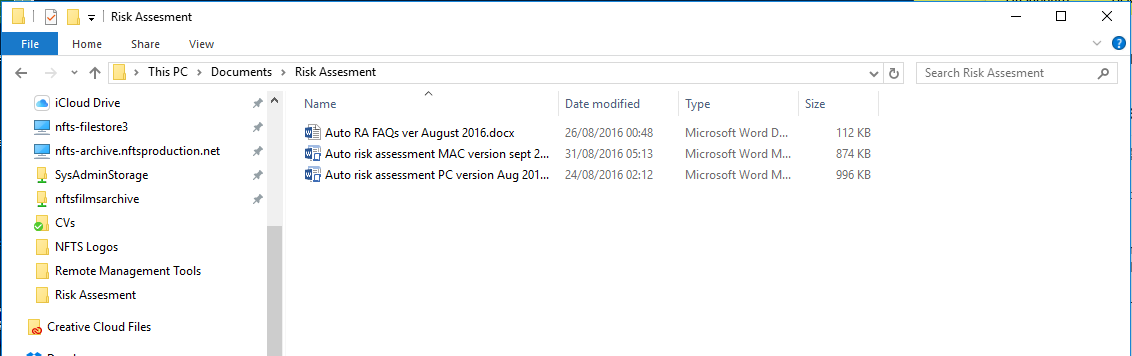
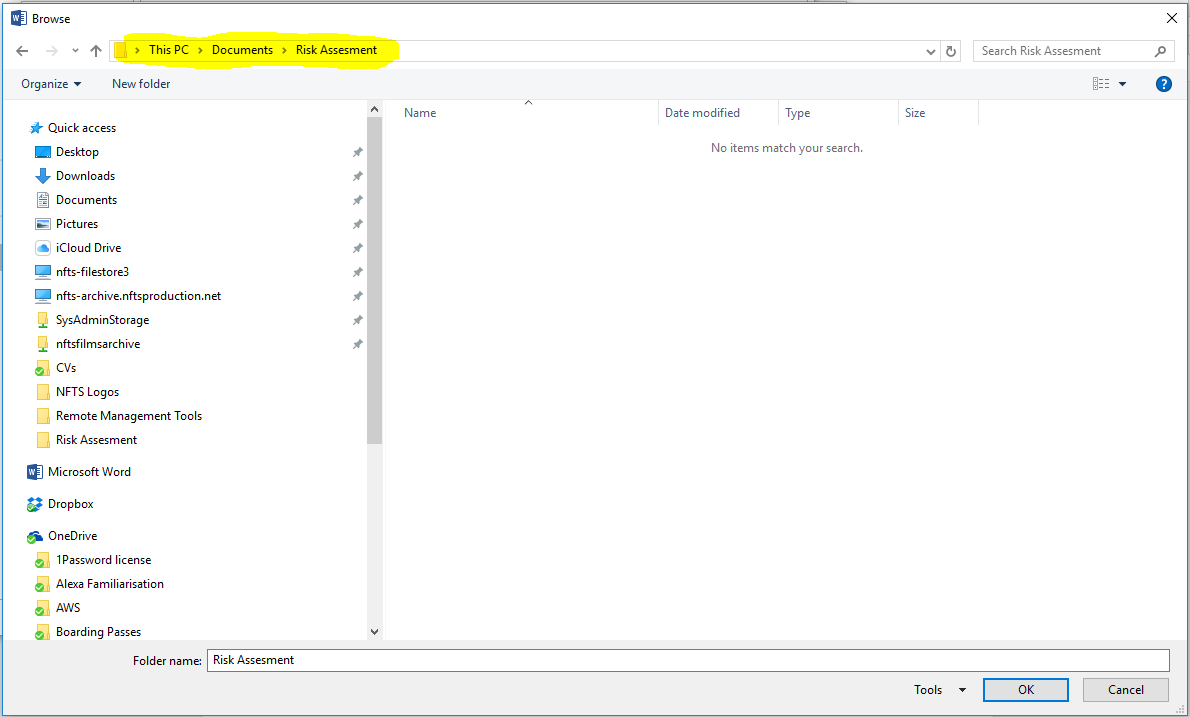
First choose a location on your PC where you will store the Risk Assessment Form template. In my case I've chosen My Documents\Risk Assessment, but the actual location doesn't matter:
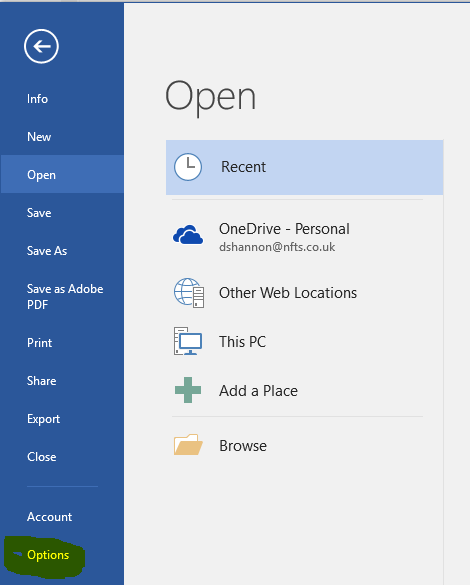
Open Word, and go to File\Options:
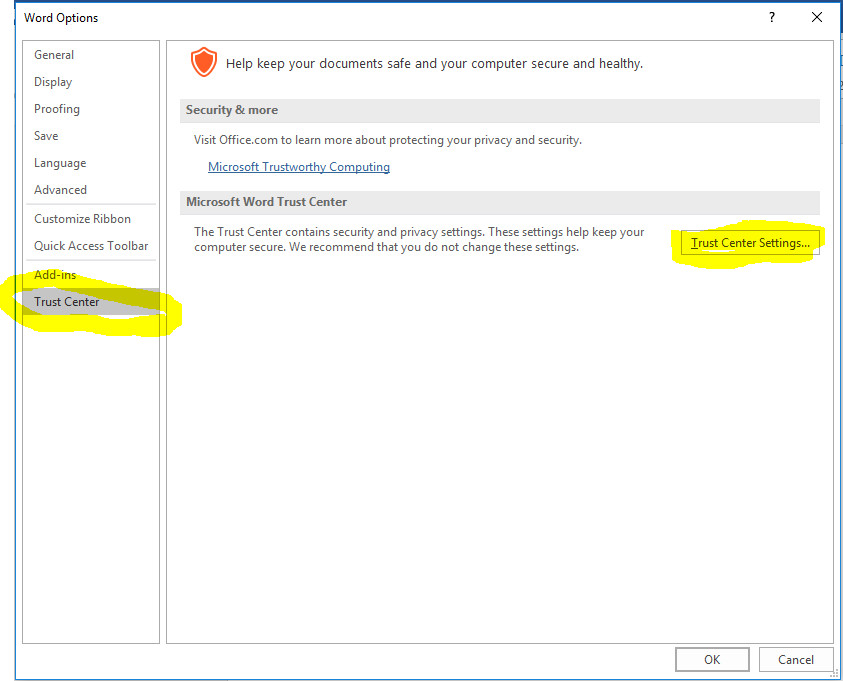
In Word Options, click Trust Center in the right-hand side menu then click Trust Center Settings:
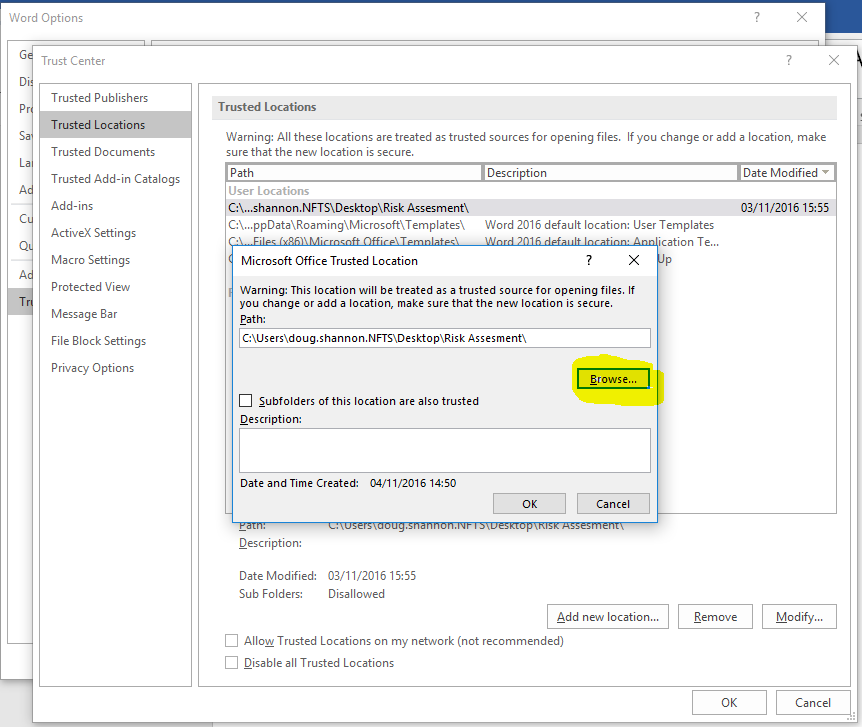
In Trust Center Settings click Trusted Locations in the right-hand side menu then click Add new location
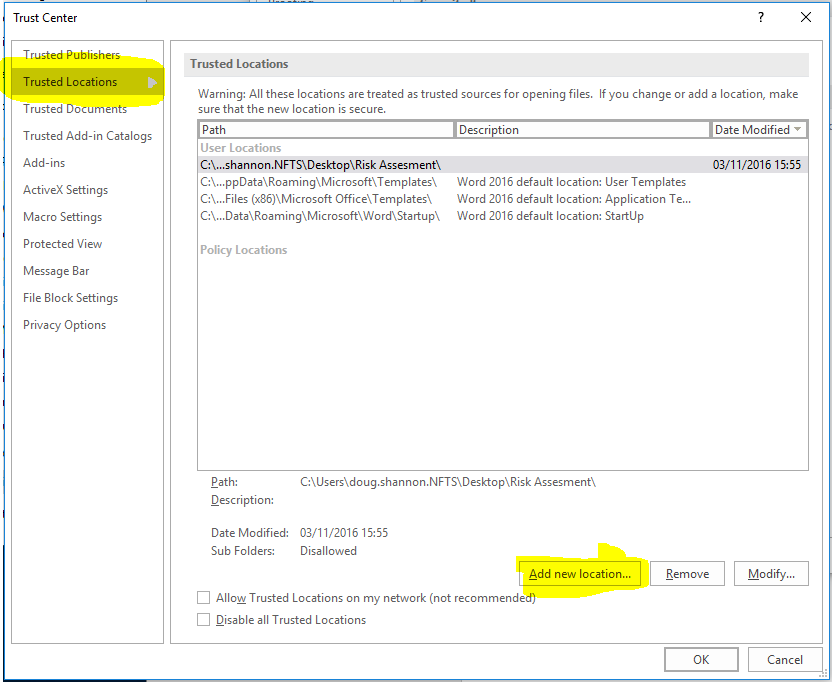
Click Browse then navigate to the location where you are storing the Risk Assessment file
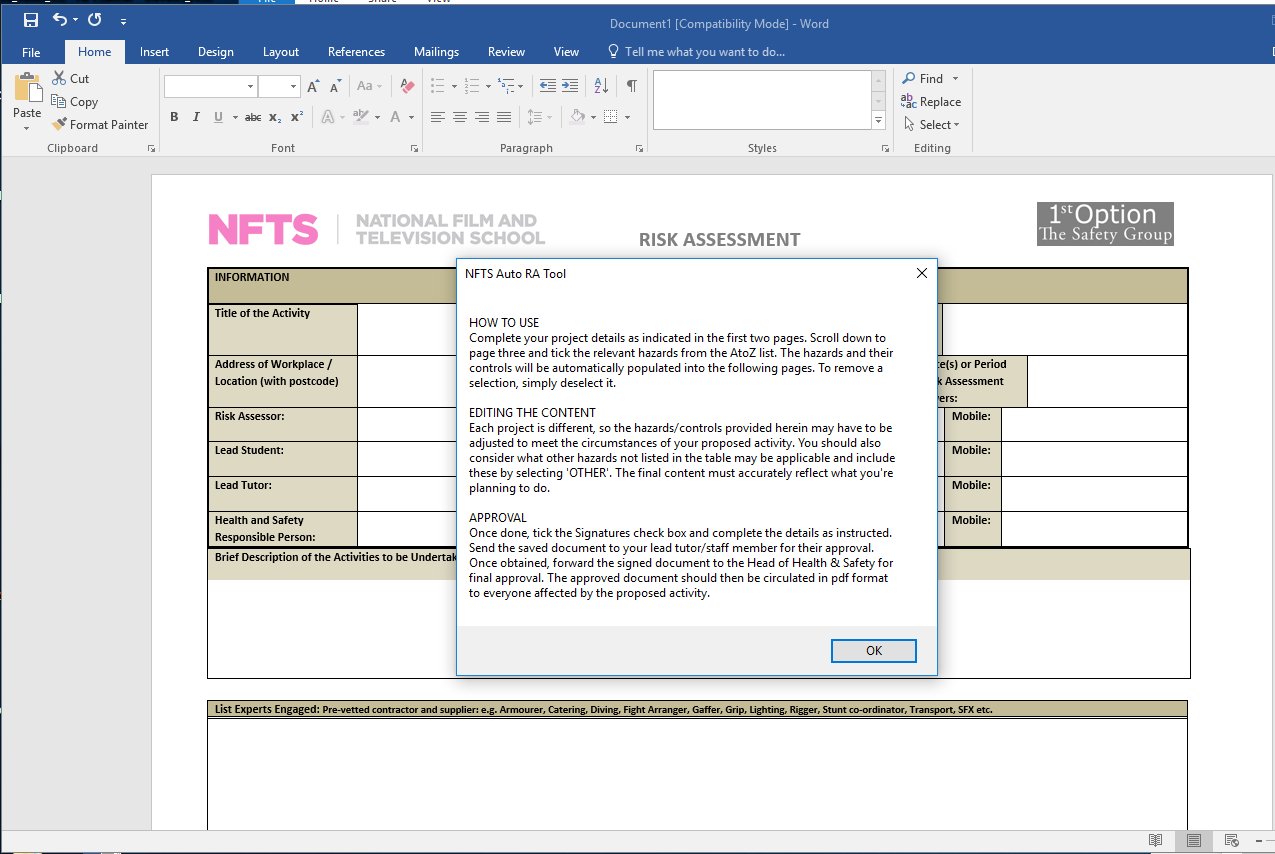
Click OK four times to leave all the option screens and get back to Word. Move the Risk Assessment template to your trusted location and open the file from that location . If you've followed this procedure correctly your screen should look like this:
Please note that PC version will only work correctly on a PC and the mac version will only work correctly on a mac. We are looking to sort this as soon as possible, but this will require a complex programming job.